Kotlin Koans—Part 5

Many modern programming lanugages have support for functional programming. I remember when Java got support for functional programming in JDK8. I have to say it was awesome to finally get support for functional programming.

Of course, Java has supported functional programming to a certain degree for a while now through anonymous inner classes. The syntax was verbose…

public class Window extends JFrame {
    
    public Window(){
        JButton jButton = new JButton("Button");
        jButton.addActionListener(new ActionListener() {
            @Override
            public void actionPerformed(ActionEvent e) {
                System.out.println("Clicked");
            }
        });
    }
}

Java 8 simplified this mess when it officially supported functional programming.

public class Window extends JFrame {

    public Window(){
        JButton jButton = new JButton("Button");
        jButton.addActionListener(e -> System.out.println("Clicked"));
    }
}

Readers can see that the above code is far more consise than the previous example so many Java developers, including myself, were greatful for the change. Android developers weren’t so lucky and unless things have changes, Android developers still have to live with anonymous inner class syntax.

That is until Kotlin came along and is now supported for Android. In this portion of the Kotlin Koans tutorial, I had to rewrite this Java code into Kotlin.

public class JavaCode4 extends JavaCode {
    public boolean task4(Collection collection) {
        return Iterables.any(collection, new Predicate() {
            @Override
            public boolean apply(Integer element) {
                return element % 42 == 0;
            }
        });
    }
}

Of course, JDK 8 developers get the Stream API and lambda syntax, while Android developers were out of luck. Here is the equivalent Kotlin code.

fun task4(collection: Collection): Boolean{
    return collection.any { element -> element % 42 == 0 }
}

You can click here to see Part 4

Kotlin Koans—Part 4

Kotlin does indeed use default arguments and named parameters. This was something I really enjoy in Python but isn’t supported in Java.

For those people who aren’t familiar with the term, named arguments is a feature in a programming language where a developer can specify the name of a parameter and assign it a value when calling a function. It helps improve code readability. Here is a little Python to show off named arguments.

def func(arg1, arg2, arg3):
    pass

# Which is more clear?
# Named arguments?
func(arg1=1, arg2=2, arg3=3)

# Non-named arguments?
func(1, 2, 3)

In the above code snippet, the developer calls each argument in the function by it’s name and assigns a value to the parameter. It’s a lot nicer because you can instantly see what each value in the function is doing.

Many people have probably heard of default arugments. This is a feature in many programming languages where a developer can specify a default value for a parameter. When calling the function, the client code can choose to specify a value or just use the default. Here is another little Python teaser.

def func(arg1='Hello World'):
    pass

# Using default
func()

# Using custom value
func('Thunderbiscuit')


Java does not support either of these concepts. It does support function overloading. In this portion of Kotlin Kroans, we have to translate this Java code into Kotlin.

package i_introduction._3_Default_Arguments;

import util.JavaCode;

public class JavaCode3 extends JavaCode {
    private int defaultNumber = 42;

    public String foo(String name, int number, boolean toUpperCase) {
        return (toUpperCase ? name.toUpperCase() : name) + number;
    }

    public String foo(String name, int number) {
        return foo(name, number, false);
    }

    public String foo(String name, boolean toUpperCase) {
        return foo(name, defaultNumber, toUpperCase);
    }

    public String foo(String name) {
        return foo(name, defaultNumber);
    }
}

Readers will notice that the function foo is overloaded three times with different versions specify default arguments. It works, but it's also super verbose. Kotlin cuts through all of that noise. Here is the same code in Kotlin.

fun foo(name: String, number: Int = 42, toUpperCase: Boolean=false): String {
    if (toUpperCase) {
        return name.toUpperCase() + number
    } else {
        return name + number
    }
}

Readers will see that Kotlin is much more consice. One Kotlin function can do the same job as four functions in Java. We can call this function using this code.

fun task3(): String {
    return (foo("a") +
            foo("b", number = 1) +
            foo("c", toUpperCase = true) +
            foo(name = "d", number = 2, toUpperCase = true))
}

In this code snippet, we make four distinct calls to foo. Each time, we only specify the arguments that we need. I am also a huge fan of using the named arguments also. It makes it much easier to read the code.

You can click here to see Part 3 or Part 5

Kotlin Spring MVC

Kotlin makes Spring MVC projects a total breeze. This is a simple web application that combines a few different Kotlin techniques into a Spring Boot project. Here are few screen shots of the finished example and then we will dive into the code that makes it possible.


package com.stonesoupprogramming.kotlinspringmvc

import org.springframework.boot.SpringApplication
import org.springframework.boot.autoconfigure.SpringBootApplication
import org.springframework.stereotype.Controller
import org.springframework.ui.Model
import org.springframework.web.bind.annotation.RequestMapping
import org.springframework.web.bind.annotation.RequestMethod

@SpringBootApplication //This performs magic under the hood to launch a spring web application
class KotlinSpringMvcHelloWorldApplication

//Entry point to the application
fun main(args: Array) {
    SpringApplication.run(KotlinSpringMvcHelloWorldApplication::class.java, *args)
}

//This is a class that we are using for our form
//Kotlin let's us one line it!
data class Registration(var firstName: String = "", var lastName: String = "")

@Controller //Tells Spring this is a controller class
@RequestMapping("/") //Tells Spring to handle web requests at the root
class Controller {

    //This function will handle HTTP Get Requests
    @RequestMapping(method = arrayOf(RequestMethod.GET))
    fun doIndexGet(model: Model): String{
        //Send a new instance of Registration back to the view
        model.addAttribute("registration", Registration())

        //Render the index.html page
        return "index"
    }

    //This method handles HTTP Post
    @RequestMapping(method = arrayOf(RequestMethod.POST))
    fun doIndexPost(formParams: Registration, model: Model): String {
        //Send a greeting message to the view
        model.addAttribute("greet", "Hello ${formParams.firstName} ${formParams.lastName}")

        //Render the greet.html page
        return "greet"
    }

    //This handles GET requests for /greet.html
    @RequestMapping(path = arrayOf("/greet"), method=arrayOf(RequestMethod.GET))
    fun doGreetGet(): String = "greet" //Just tell it to render the greet.html page
}

Initializing the Application

Many readers are no doubt familiar with Spring Boot. Our first class in this project appears on line 11 with this code.

@SpringBootApplication //This performs magic under the hood to launch a spring web application
class KotlinSpringMvcHelloWorldApplication

Kotlin focuses on begin concise and in this is literally an empty class that is annotated with @SpringBootApplication. The annotation performs some Spring magic that does the job of initializing the Spring environment for us. Our next segment of code is the entry point to the application.

//Entry point to the application
fun main(args: Array) {
    SpringApplication.run(KotlinSpringMvcHelloWorldApplication::class.java, *args)
}

Once again, there isn’t much code here, but a lot is happening under the hood that is invisible to us. We are calling the static SpringApplication.run function and passing into it the KotlinSpringMvcHelloWorldApplication class along with the supplied command line arguments. Once again, we will leave it up to Spring to prepare our environment.

Data Class

Many Java developers have no doubt made classes the are simply holders for properties along with a constructor, getters and setters, hashcode(), equals(), and toString(). Two common applications of such classes are ORM model classes and classes that can be passed back to the view. In this case we are making a class that gets passed to the view, but we are going to define it using Kotlin’s data class. The code for such a class is extremely brief.

data class Registration(var firstName: String = "", var lastName: String = "")

Using this single line of code, we make a Registration class with two properties, a default constructor, and an overloaded constructor. The class comes packed with hashcode(), equals(), toString() and when used in Java code, it will have getters and setters. We are going to pass this code back to the view in the controller class.

Controller

The Controller is another portion of Spring MVC. We use it to map HTTP requests to the appropriate methods in the class. Spring will also inject a Model class when needed so that we can pass data back to the view. Here is the controller class written in Kotlin.

@Controller //Tells Spring this is a controller class
@RequestMapping("/") //Tells Spring to handle web requests at the root
class Controller {

    //This function will handle HTTP Get Requests
    @RequestMapping(method = arrayOf(RequestMethod.GET))
    fun doIndexGet(model: Model): String{
        //Send a new instance of Registration back to the view
        model.addAttribute("registration", Registration())

        //Render the index.html page
        return "index"
    }

    //This method handles HTTP Post
    @RequestMapping(method = arrayOf(RequestMethod.POST))
    fun doIndexPost(formParams: Registration, model: Model): String {
        //Send a greeting message to the view
        model.addAttribute("greet", "Hello ${formParams.firstName} ${formParams.lastName}")

        //Render the greet.html page
        return "greet"
    }

    //This handles GET requests for /greet.html
    @RequestMapping(path = arrayOf("/greet"), method=arrayOf(RequestMethod.GET))
    fun doGreetGet(): String = "greet" //Just tell it to render the greet.html page
}

The first line is the @Controller annotation. Our Spring boot environment has component scanning enabled, so we only need to annotate our controller class to make Spring aware of it’s existence. On line 2, we have the @RequestMapping annotation that tells Spring that the default request mapping for this class is the root of the web application (‘/’). The class contains three functions: doIndexGet, doIndexPost, and doGreetGet. Let’s talk about each in detail.

doIndexGet

This method is annotated with @RequestMapping and it handles HTTP Get requests to the ‘/’ endpoint. The function has one parameter, model : Model, and it returns a String. The model parameter is injected by Spring.

On the first line of the function, we add a “registration” attribute to the model with a new instance of Registration. Notice that in Kotlin, we do not need the new keyword and since we define default arguments for our Regsitration class, we do not need to supply an parameters. The function ends by returning the String “index” which will tell Spring and Thymeleaf (which is our template engine) which page to render.

doIndexPost

This function handles HTTP post methods as indicated by @RequestMapping(method = arrayOf(RequestMethod.POST)). It’s two arguments, formParams: Registration, and model : Model, are injected into this method by Spring. In the view, we have the following http form.
form copy
Inside of this html code you will see things like ${registration}, th:field=”*{firstName}”, and th:field=”*{lastName}”. These special tags map these input fields to the properties our Registration object that we sent back to the view in the doIndexGet function. When we click on the submit button the setter methods of the registration object are called and the values of the input boxes in the form are inserted into Registration::firstName and Registration::lastName. Then the Registration object is sent back to the server and routed to our doIndexPost method.

Once we are inside of the doIndexPost method, we can add a String to our model class.

model.addAttribute("greet", "Hello ${formParams.firstName} ${formParams.lastName}")

The second argument is the portion that I wish to discuss. Kotlin has String templating which lets us build a String using inline variables. Thus the ${formParams.firstName} will get replaced with the first name entered by the user and ${formParams.lastName} gets replaced with the last name the user entered. Then the function returns with the String “greet” which tells the web application to show the greet page.

doGreetGet

This final function is the shortest. It’s simply a function that handles the request mapping for HTTP Get when the browser navigates to the greet page. However, Kotlin let’s us define functions inline, so it’s worth talking about.

@RequestMapping(path = arrayOf("/greet"), method=arrayOf(RequestMethod.GET))
fun doGreetGet(): String = "greet" //Just tell it to render the greet.html page

All this code does is return the string “greet” so that the web application knows to render the greet.html page. Since it’s literally just returning one value, we can legally write String = “greet” in Kotlin and omit the method body.

Web Pages

For reference purposes, I have included screen shots of the web pages (they don’t seem to render properly when I use the code formatter 😦 sorry readers)!

index.html
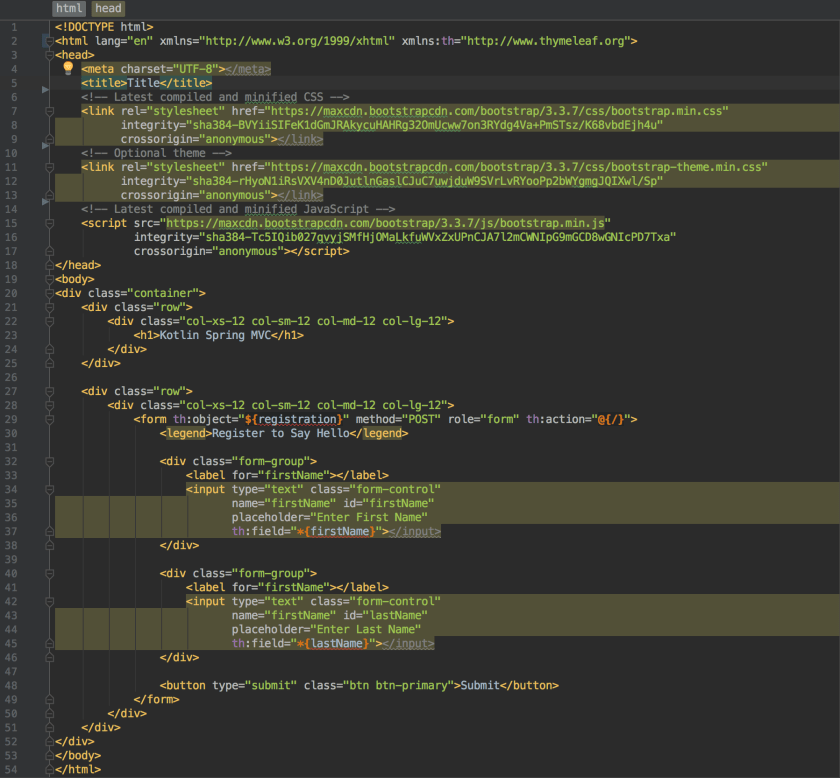
index copy
We have already discussed how the Registration object is bound to the html form on this page. However, it’s worth pointing out that this page uses Bootstrap for page layout. Most of the code in this page was auto-generated by Intellij also, which has world class support for Bootstrap.

greeting.html
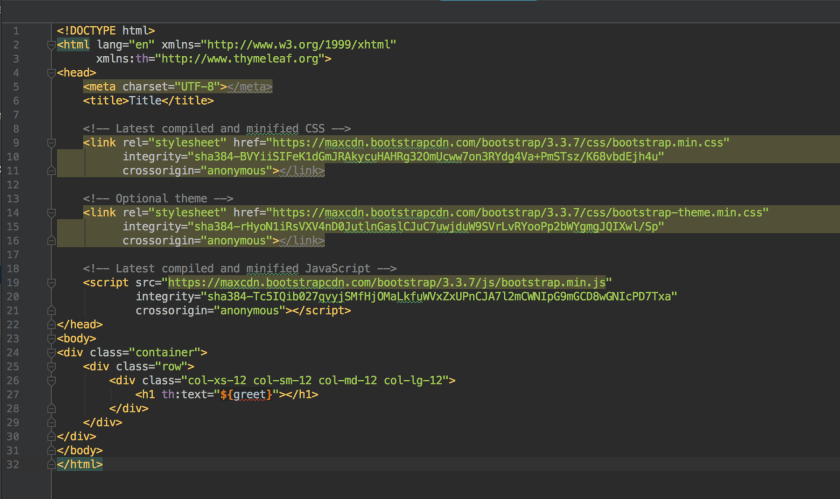
greet_page copy
This is the other page that get’s returned by the controller after the user enters their name. We built a String in doPostIndex and mapped it to the key “greet” in the model. On this page, we can show that custom greeting by using th:text=”${greet}”. The template engine is smart enough to insert this greeting between the header tags.

Source

You can get the complete source code for this project from my Bitbucket page. Happy coding!

Kotlin Koans—Part 3

The last tutorial’s challange was to take a collection and assemble it into a string using StringBuilder. Java 8 finally gave developers a way to join a String, but Kotlin seems to make it even easier.

This partion of the Kotlin Koans tutorial has us using collection::joinToString. Using Kotlin, we can assemble an entire collection into a String using just one line of code.

fun task2(collection: Collection): String {
    return collection.joinToString(", ", "{", "}")
}

This code is functionally equivalent to what we did in part 2. I also learned a little bit more about the language. Kotlin let’s us have default parameters in our methods. I have to say, while I appreciate Java’s method overloading capabilities, there are times where it’s simplier to use default parameters.

You can click here to see Part 2 or Part 4

Kotlin Koans—Part 2

After doing the first tutorial on Kotlin, I was impressed, but let’s face it, anyone can do a simple “hello world” style program. Nevertheless, I decided to continue with the Kotlin tutorial found at kotlinlang.org. When I moved onto part two of the tutorial, I was really impressed.

It wasn’t that I was super impressed with the language itself. It was IntelliJ’s support of Kotlin that blew me away. When you copy and paste Java code into the IDE, it will offer to translate it to Kotlin for you.

You can see in the video that IntelliJ just did the work of taking the Java code that I copied and pasted into my Kotlin class. I thought this was incredibly slick because it gave me the change to see the differences between Java and Kotlin.

Of course, I wanted to do the exercise myself so that I can get the hang of writing Kotlin code. The problem in this portion of the tutorial was to take this Java code and rewrite as Kotlin code.

public class JavaCode1 extends JavaCode {
    public String task1(Collection collection) {
        StringBuilder sb = new StringBuilder();
        sb.append("{");
        Iterator iterator = collection.iterator();
        while (iterator.hasNext()) {
            Integer element = iterator.next();
            sb.append(element);
            if (iterator.hasNext()) {
                sb.append(", ");
            }
        }
        sb.append("}");
        return sb.toString();
    }
}

It’s not too painful of code. Here is what I ended with when I wrote the code as Kotlin code on my own.

fun todoTask1(collection: Collection): Nothing = TODO(
    """
        Task 1.
        Rewrite JavaCode1.task1 in Kotlin.
        In IntelliJ IDEA, you can just copy-paste the code and agree to automatically convert it to Kotlin,
        but only for this task!
    """,
    references = { JavaCode1().task1(collection) })


fun task1(collection: Collection): String {
    val sb = StringBuilder()
    sb.append("{")
    val iterator = collection.iterator()
    while (iterator.hasNext()){
        val element = iterator.next()
        sb.append(element)
        if (iterator.hasNext()){
            sb.append(", ")
        }
    }
    sb.append("}")
    return sb.toString()
}

There was one thing I noticed about the Kotlin code that I liked. It looks as if we are allowed to have free standing functions in Kotlin outside of a class definition. While I appreciate OOP, there are frankly times where I’m not sure if OOP is the best approach to a problem. This was one of things I really like about Python is that I can break out of OOP when I want.

Now I know that it’s perfectly true that we can use static imports in Java, but I have always felt that was a clumsy approach. Static functions and static imports always seemed more like an after thought to the language that got tacked on after enough people complained. Of course, that’s just a matter of opinion, but anyway, I do like having a choice in Kotlin about when to use classes or just when to use function. Kotlin seems to have included this choice as part of the design of the language right from the get go.

You can click here to see Part 1 and here to see Part 3.

Kotlin Koans—Part 1

I read that Android is going to officially support Kotlin now. Last year, I bought the IntelliJ IDE and one of the first things I noticed was that the IDE offered to make Kotlin classes. I had never done anything with Kotlin but I often wondered about it. It looked interesting to me, but now that Google has thrown in with Kotlin, I decided to give it try for myself.

This is the first in a series of posts where I’m going to work through the tutorials provided on kotlinlang.org. This first post was on the very first tutorial, which is the classical ‘Hello World’ style problem.

I started by cloning the github project that they give you. Here is what I got presented with.

package i_introduction._0_Hello_World

import util.TODO
import util.doc0

fun todoTask0(): Nothing = TODO(
    """
        Introduction.

        Kotlin Koans project consists of 42 small tasks for you to solve.
        Typically you'll have to replace the function invocation 'todoTaskN()', which throws an exception,
        with the correct code according to the problem.

        Using 'documentation =' below the task description you can open the related part of the online documentation.
            Press 'Ctrl+Q'(Windows) or 'F1'(Mac OS) on 'doc0()' to call the "Quick Documentation" action;
            "See also" section gives you a link.
            You can see the shortcut for the "Quick Documentation" action used in your IntelliJ IDEA
            by choosing "Help -> Find Action..." (in the top menu), and typing the action name ("Quick Documentation").
            The shortcut in use will be written next to the action name.

        Using 'references =' you can navigate to the code mentioned in the task description.

        Let's start! Make the function 'task0' return "OK".
    """,
    documentation = doc0(),
    references = { task0(); "OK" }
)

fun task0(): String {
    return todoTask0()
}

My job was to make the function task0 was to make it return “OK”. It wasn’t too painful. I just had to update task0

fun task0(): String {
    return "OK"
}

Once I did this, I ran the unit test that they give you to check if you did the task properly. This was easy to do in IntelliJ. The IDE provides you with a button to click on to run the test.
run_test
After I ran the test, I got the output the test was expecting.

Bubble Sort—Java

The bubble sort is a very common algorithm that many computer science students are expected to learn. Yesterday I did a post that shows a Python implementation of the bubble sort which you can view here. Today I will demonstrate the same technique in Java.

import java.util.Arrays;

public class BubbleSort {

public static void main(String [] args){
Integer [] nums = {9, 4, 2, 1, 10};
System.out.println("Unsorted is " + Arrays.toString(nums));

bubbleSort(nums);
System.out.println("Sorted is " + Arrays.toString(nums));
}

public static<T extends Comparable> void bubbleSort(T [] array){
int n = array.length;
T temp;

for(int i = 0; i < n; i++){
for (int j = 1; j  0){
//Swap the elements
temp = array[j - 1];
array[j - 1] = array[j];
array[j] = temp;
}
}
}
}
}

Java is a little more verbose than Python. Since it is a statically typed language (which means you have to declare the data type up front, as opposed to Python’s duck typing method), I chose to use generics to implement this sort.

Generics were introduced in JDK 1.5. They allow us to write code that is widely applicable to many types of objects without forcing us to use the Object class. You can find a wide use of generics in the java.util package.

In this case, I declared my generic method like this

public static<T extends Comparable> void bubbleSort(T [] array){

Let’s go through this one word at a time.

  1. public—This is the keyword that makes this method publically available
  2. static—This keyword attaches this method to the class rather than an object
  3. <T extends Comparable>—This is the code that declares this method to be a generic method. T is the type of the object, followed by extends Comparable which means that any object that implements the Comparable interface is accetable to this method.
  4. T [] array—This declares an array of type T (which is any class that implements Comparable in this case)

Now that we have declared this to be a generic method, this method will work with any object that implements the Comparable interface. The Comparable interface is widely used throughout Java in sorting. It declares a compareTo(T obj) method which returns a positive number when an item is greater than the comparing object, zero when the two objects are equal, and a negative number when the comparing object is less than the other object.

Since this interface exists, Java lets us sort anything that implements this interface easily. That allows programmers a high degree of freedom and flexibility when creating custom classes because the programmer gets to decide how one object is greater than, less than, or equal to another object.

We apply the Comparable interface to this bubble sort method here

if(array[j - 1].compareTo(array[j]) > 0){
//Swap the elements
temp = array[j - 1];
array[j - 1] = array[j];
array[j] = temp;
}

If the left hand portion array[j - 1].compareTo(array[j]) is 0, then these two items are 0. If the result is a negative number then array[j - 1] is less than array[j], otherwise array[j - 1] is greater than array[j] and it needs to get swapped.

When run, we get this output

Unsorted is [9, 4, 2, 1, 10]
Sorted is [1, 2, 4, 9, 10]

Java Data Types

Almost everything we do in computer programming involves data. In many cases, the data itself is more valuable then the program. Many tax programs are written, but they all work on the same data. We may write tax software that displays fancy charts of your AGI over a period of 5 years, or we may write a program that calculates your net income. These programs are very worthwhile without data.

Java has two main ways of representing data. The first set of data types are called primitives. They are as follows

  • byte (8-bit signed)
  • short (16-bit signed)
  • int (32-bit signed)
  • long (64-bit signed)
  • float (32-bit)
  • double (64-bit)
  • boolean (true/false)
  • char (16-bit unicode characters)

Whole Numbers

Let’s discuss each of these data types in turn starting with byte. A byte is smallest integer variable available to Java programmers and can hold values between -128 and 127. I generally use bytes in situations where I need to be conscious of my memory usage or when I’m programming on the web and need to transfer information from one site to another.

We can make a byte like this

byte b = 120; //This variable stores the number 120

Next up the ladder is the short. Like bytes, shorts contain whole numbers between -32768 and 32767. Use shorts when you need to be concerned about memory usage.

Create a short by

short s = 120; //This variable also store the number 120

The next primitive data type is int. This is one of the most commonly used numeric data type in Java programs. The int primitive data type stores values between -2147483648 and 2147483647.

Create an int by

int i = 1; //This int variable holds the number 1

The long is the final whole number data type. At 64-bits this variable comes in as a monster that can store values between -9223372036854775808 and -9223372036854775807. Longs make great candidate in scientific applications where the program may end up processing large sets of data. I also see them used to store primary keys in database programming.

Create a long by

long l = 100; //This long variable holds the number 100

Decimals and Fractions

There are times where you need to store numeric data that is not a whole number. For example, in many cases you may need to use the number PI (3.14159) in a calculation. Our next two data types hold such numbers.

The first is float, which is a floating point number (hence the name). This is a 32-bit variable that can store 1.4E-45 to 3.4028235E38. Double is the more commoly used data type (64-bits) and stores values ranging from 4.9E-324 to 1.7976931348623157E308.

float f = 5.99; //Make a float that stores the number 5.99
double d = -1.00; //Make a double that stores the number -1.00;

Never store money in these data types! The internal mechanics of these data types cause a loss in percision that can result in inaccuracies. Money should always get stored in the BigDecimal object.

Non Numeric Data

Java has the ability to store non-numeric data. Sometimes all a programmer needs to know if when something it True or False. The boolean data type is used for such a purpose.

boolean bTrue = true; //This boolean is true
bTrue = false; //Now it's false

We can also store unicode characters with the char type.

char c = 'a'; //Store the letter a
char tab = '\t'; //Stores  a tab character

Objects

Java also supports another data type that is not a primitive. These are called objects (to be discussed in another post). At this point there is one critical object to discuss that is called the String. String is a special kind of object that supports words and textual data.

//Since Strings are objects, so we use the 'new' keyword to create them
String str = new String("Hi! I'm a string of letters");

//But you can also do this since Java has special built-in support for Strings
String anotherString = "Hi! I'm another String!";

A working example

Below is a working example program that you can use to see the data types discussed above in action.


public class DataTypes {

    public static void main(String [] args){
        byte byteMin = Byte.MIN_VALUE;
        byte byteMax = Byte.MAX_VALUE;

        System.out.println("Bytes are the smallest data types (8-bit) and represent whole numbers.");
        System.out.println("The smallest value you can store in a byte is " + byteMin + " and" +
                " the maximum value is " + byteMax);
        System.out.println("");

        short shortMin = Short.MIN_VALUE;
        short shortMax = Short.MAX_VALUE;

        System.out.println("Shorts are one step larger than bytes (16-bit) and represent whole numbers.");
        System.out.println("The smallest value you can store in a short is " + shortMin + " and" +
                " the maximum value is " + shortMax);
        System.out.println("");

        int intMin = Integer.MIN_VALUE;
        int intMax = Integer.MAX_VALUE;

        System.out.println("Integers are one step larger than shorts (32-bit) and represent whole numbers.");
        System.out.println("The smallest value you can store in an integer is " + intMin + " and" +
                " the maximum value is " + intMax);
        System.out.println("");

        long longMin = Long.MIN_VALUE;
        long longMax = Long.MAX_VALUE;

        System.out.println("Longs are the largest of whole number data type (64-bit).");
        System.out.println("The smallest value you can store in a long is " + longMin + " and" +
                " the maximum value is " + longMax);
        System.out.println("");

        float floatMin = Float.MIN_VALUE;
        float floatMax = Float.MAX_VALUE;

        System.out.println("Floats represent decimal types. (32-bit)");
        System.out.println("The smallest value you can store in a float is " + floatMin + " and" +
                " the maximum value is " + floatMax);
        System.out.println("");

        double doubleMin = Double.MIN_VALUE;
        double doubleMax = Double.MAX_VALUE;

        System.out.println("Doubles also represent decimal types. (64-bit)");
        System.out.println("The smallest value you can store in a double is " + doubleMin + " and" +
                " the maximum value is " + doubleMax);
        System.out.println("");

        boolean booleanFalse = false;
        boolean booleanTrue = true;

        System.out.println("Booleans store true or false values.");
        System.out.println("booleanFalse = " + booleanFalse);
        System.out.println("booleanTrue = " + booleanTrue);
        System.out.println("");

        char charMin = Character.MIN_VALUE;
        char charMax = Character.MAX_VALUE;

        System.out.println("char represents a 16-bit unicode character");
        System.out.println("The smallest char value is " + charMin + " and the largest is " + charMax);
        System.out.println("");

        String string = new String("I'm a string of text");
        System.out.println("Java also has the Object data type. This is different from our other data types.");
        System.out.println("It this example, we have and object that is a String. Strings hold text.");
        System.out.println("string = " + string);
    }
}

This is the output of the program when executed

Bytes are the smallest data types (8-bit) and represent whole numbers.
The smallest value you can store in a byte is -128 and the maximum value is 127

Shorts are one step larger than bytes (16-bit) and represent whole numbers.
The smallest value you can store in a short is -32768 and the maximum value is 32767

Integers are one step larger than shorts (32-bit) and represent whole numbers.
The smallest value you can store in an integer is -2147483648 and the maximum value is 2147483647

Longs are the largest of whole number data type (64-bit).
The smallest value you can store in a long is -9223372036854775808 and the maximum value is 9223372036854775807

Floats represent decimal types. (32-bit)
The smallest value you can store in a float is 1.4E-45 and the maximum value is 3.4028235E38

Doubles also represent decimal types. (64-bit)
The smallest value you can store in a double is 4.9E-324 and the maximum value is 1.7976931348623157E308

Booleans store true or false values.
booleanFalse = false
booleanTrue = true

char represents a 16-bit unicode character
The smallest char value is  and the largest is ￿

Java also has the Object data type. This is different from our other data types.
It this example, we have and object that is a String. Strings hold text.
string = I'm a string of text

Getting Started

Java is one of the most widely used programming languages today. According to Oracle, over 3 Billion devices run Java. Java is used in a wide variety of applications. For example, many Android applications are written in Java. Java is used in Web applications that power eCommerece stores that connect to databases or even other websites using technologies such as REST. Many people have written desktop Java applications that make schedules or handle payroll. I have even seen Java powered cash registers.

The point is that anyone who grabs a solid understanding of Java will not struggle to find work in the foreseeable future. As of this writing, the Java platform is in its 8th version with JDK 9 on its way. Java development has a massive community of people who are happy to share programming techniques and help others improve their code. Companies such as Google contribute to Java by publishing software libraries to enhance the language.

However, to get started in Java, we need to install our build tools. The Java Development Kit (JDK) can be downloaded from Oracle’s website here. Alternatively, you can also use OpenJDK which is a community drive version of Java. Install either of these software packages will install the Java Runtime Environment (JRE), the Java compiler, and related software libraries on your system that make Java development possible.

Now let’s write our first Java application. To do this, you need to use a plain text editor (on Windows, that would be notepad. Apple users may use TextEdit). In the end, Java source files are files that end with the .java extension. Once you have your text editor open, start by typing the following code.

 
public class HelloWorld { 
    public static void main(String [] args){ 
        System.out.println("Hello World"); 
    } 
} 

Once you have this code inserted into your text editor, you should use the save as feature and save this file HelloWorld.java. This is a critical step because required the name of the file to match the name of the class (this is the name that follows the keyword class, so in our case, it’s HelloWorld). Once you have saved the file, you will need to open your system’s command prompt or terminal.

At this point, you need to compile your java file. Java is a compiled language that relies on the Java compiler to turn your *.java into an *.class file. To run the java compiler, navigate to the folder (or directory) that you saved your HelloWorld.java file in and then type.

javac HelloWorld.java

If all goes well, you will have a HelloWorld.class file in that folder next to HelloWorld.java. To run the program type:

java HelloWorld

Your system will print:

Hello World

Congratulations! You have wrote, compiled, and ran your first Java program!