Node.js & Spotify

Spotify provides APIs that allow developers to write client applications. This tutorial will demonstrate how to use Node.js to create a simple web application that queries Spotify for information about a particular song. Start by creating a Node.js application with a folder structure that resembles the one shown in this screenshot. You can view a tutorial one how to do this at this link or use your IDE.
Folder_Structure You will want to have the following dependencies in your package.json file.

{
  "name": "spotifynode",
  "version": "0.0.0",
  "private": true,
  "scripts": {
    "start": "node ./bin/www"
  },
  "dependencies": {
    "body-parser": "~1.17.1",
    "cookie-parser": "~1.4.3",
    "debug": "~2.6.3",
    "express": "~4.15.2",
    "hbs": "~4.0.1",
    "morgan": "~1.8.1",
    "node-spotify-api": "^1.0.5",
    "serve-favicon": "~2.4.2"
  }
}

Spotify requires developers to create application keys in order to use their APIs. Follow the guide provided here in order to create a developer account with Spotify. Once you have created an application, you will need to retain the application id and secret.

Start by creating a keys.js file in the routes folder. It should look like the following example.

keys.js

exports.spotifyKeys = {
    id: 'Spotify Id Here',
    secret: 'Spotify Secret Here'
};

The next thing to do is to write the server side code that handles HTTP GET and POST requests. Here is the code for index.js.

index.js

var express = require('express');
var router = express.Router();

//Import the Spotify API
var Spotify = require('node-spotify-api');

//Import our Keys File
var keys = require('./keys');

//Create a Spotify Client
var spotify = new Spotify(keys.spotifyKeys);

//Store the results of a request to spotify
var results = [];

/* GET home page. */
router.get('/', function (req, res) {
    res.render('index', {title: 'Spotify', results: results});
});

router.post('/', function (req, res) {
    //Get the type of Query from the User
    var type = req.body.param_type;

    //Get the query from the user
    var query = req.body.param_query;

    //Clear out old results
    results = [];

    //Make a request to Spotify
    spotify.search({type: type, query: query})
        .then(function (spotRes) {

            //Store the artist, song, preview link, and album in the results array
            spotRes.tracks.items.forEach(function(ea){
                results.push({artist: ea.artists[0].name,
                              song: ea.name,
                              preview: ea.external_urls.spotify,
                              album: ea.album.name});
            });
            //Render the homepage and return results to the view
            res.render('index', {title: 'Spotify', results: results});
        })
        .catch(function (err) {
            console.log(err);
            throw err;
        });
});

module.exports = router;

This code sets up two handlers for GET and POST requests. More details about how to do this can be found in this post. We begin on line 5 by importing the Spotify API into our script. Then we pull in the keys.js file we created earlier so that we can authenticate with Spotify. The next line creates a spotify object and we pass our creditionals to its constructor.

The next point of interest is the spotify.search found on line 32. The spotify.search function takes in two arguments, type and query. The type argument specifies the type of query and the query is the actual search criteria that we are going to send to the API. The spotify library will make correct rest calls to the Spotify API and it will return a response.

Inside of the body of the promise function, we push some information about the song to the results array so that we can display it to the view. In this case, we are going to grab the artist, song, a preview url, and the song’s album. We then return it to the view for display in a table.

index.hbs

We can use Handlebars to markup a template page that will get returned to the browser from the server.
spotify-index

Conclusion

When run, the application will look like the following screenshots.


You can view the source from my GitHub page at this link.

Node.js Handlebars Twitter

Twitter provides REST APIS that make it incredibly easy to access information from Twitter. When combined with Node.js, it becomes a trivial task to create a web application that connects to Twitter and displays the latest tweets for a User.

In order to begin, you will need to register at Twitter’s developers page. The details page will give you several tokens that you will need to connect to Twitter: consumer_key, consumer_secret, access_token_key, and access_token_secret. Keep this information handy as you will need it for later.

Now we can create the project. I use Intellij’s node.js plugin to create my project, but you will want to create a project structure that is similar to the one shown in the following screenshot. You can view a tutorial one how to do this at this link or use your IDE or you may find the directions at Express.js to be useful as well.
project_structure
Once you have created your project (making sure you have express.js and handlebars.js), you will need to add Twitter. Open up the terminal and navigate to your project’s directory. Then type

npm install twitter

At this point you are ready to begin developing.

Create a keys.js file in your routes folder. Then populate it with the following code. You will use the consumer_key, consumer_secret, access_token_key, and access_token_secret properties that you obtained earlier on Twitter’s developer’s page and replace the values in this file accordinly.

exports.twitterKeys = {
    consumer_key: '[your consumer key here]',
    consumer_secret: '[your consumer secret here]',
    access_token_key: '[your access_token_key here]',
    access_token_secret: '[your acess_token_secret here]',
};

The next job is to write the index.js file that handles HTTP GET and POST requests. (You can view this tutorial for more information). The code is very short as we are only handling a GET and POST request.

//Pull in our libraries
var express = require('express');
var router = express.Router();
var Twitter = require('twitter');

//Get our access keys
var keys = require('./keys.js');

//Create twitter client
var twitter = new Twitter(keys.twitterKeys);

//Store our tweets
var tweets = [];

/* GET home page. */
router.get('/', function (req, res) {
    res.render('index', {title: 'Node Twitter', tweets: tweets});
});

router.post('/', function (req, res) {
    //Get the user name and number of tweets from the form
    var user = req.body.user_name;
    var numTweets = req.body.tweets;

    //Clear out old tweets
    tweets = [];

    //Hit Twitter for the information
    twitter.get('statuses/user_timeline', {screen_name: user, count: numTweets})
        .then(function (tw) {
            //Loop through the results
            for (var i = 0; i < tw.length; i++) {
                tweets.push({timestamp: tw[i]['created_at'], tweet: tw[i]['text']});
            }
            //Render the index page with the tweets
            res.render('index', {title: 'Node Twitter', tweets: tweets});
        })
        .catch(function (error) {
            console.log(error);
            throw error;
        });
});

module.exports = router;

The magic of retrieving tweets is done with the twitter.get(). This function takes a rest endpoint (see here for a list) along with a map of arguments that end up becoming URL parameters in the request. Since we are getting the user’s tweets, we are going to hit the statuses/user_timeline endpoint. The screen_name argument is the users Twitter name and count is the number of tweets that are getting returned.

The Twitter api returns a massive JSON response that holds just about every detail we could ever want to know about a Tweet. We are only interested in when the tweet was created and the text of the tweet. So we loop through the tw (the response object) and just grab those two properties and push them into our tweets array. When we have finished, we will pass tweets back to the view and render the index page.

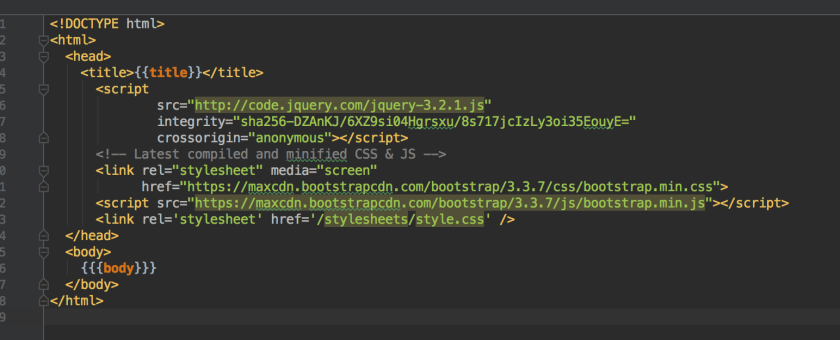
Our final job is to define our html templates. Since we are using Bootstrap and jQuery, we will need to add these libraries to layout.hbs.
layout.hbs
Next we need to write our index.hbs template. Here is the source.
index
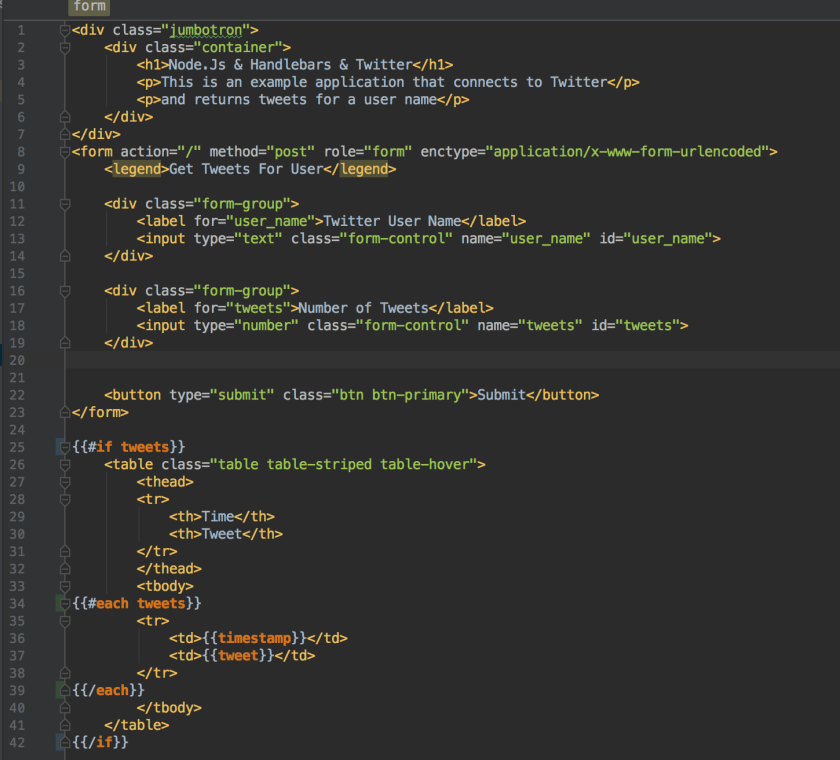
Line 25 starts with {{#if tweets}}. This is a conditional rendering tag that only renders the code between 25-42 if there are tweets to display. Without it, we would write out the table between lines 26-41 when there are no tweets, which would not make a lot of sense.

Once we have tweets, the #if condition will be true and the page will write out a table of tweets. The code on line 34-39 will write out a table row for each tweet that is contained. When we are finished, we will get this output.

You can get the code out my GitHub page here or view the video tutorial on my YouTube channel.

Kotlin Spring JDBC Template

It’s typical for many applications, including web applications, to read and write to a database. JDBC operations are significantly simplified when using Spring JdbcTemplates and Kotlin’s language features. For example, it’s easy to one line read and insert operations into a database. This post goes through a sample web application that inserts a user into a database table and then prints a list of all users stored in the database.

Interacting with the Database

Our first order of business is to create a database schema. This is the SQL script that we will use to generate our database.

DROP TABLE IF EXISTS USERS;

CREATE TABLE USERS (
  id INTEGER IDENTITY,
  first_name VARCHAR(50),
  last_name VARCHAR(50),
  email VARCHAR(50),
  phone VARCHAR(50),
)

Now we will define a database that maps to the information held in our database. Kotlin’s data classes are ideal for this sort of task.

//Define a data class that maps to both our
//form and database table
data class User(var firstName: String = "",
                var lastName: String = "",
                var email: String = "",
                var phone: String = "")

There isn’t anything special about our User class. It’s only job is to carry information from the view to the database and back from the database to the view. Now that we have a database table and a transfer object, we need to configure our datasource so that Spring can connect our application to our database. We will define a configuration class that will define some Spring beans for us.

@Configuration
class Configuration {

    //First configure a data source that
    //generates an embedded db
    @Bean(name = arrayOf("dataSource"))
    fun dataSource(): DataSource {

        //This will create a new embedded database and run the schema.sql script
        return EmbeddedDatabaseBuilder()
                .setType(EmbeddedDatabaseType.HSQL)
                .addScript("schema.sql")
                .build()
    }

    //Create a JdbcTemplate Bean that connects to our database
    @Bean
    fun jdbcTemplate(@Qualifier("dataSource") dataSource: DataSource): JdbcTemplate {
        return JdbcTemplate(dataSource)
    }
}

The first bean, dataSource, returns an EmbeddedDatabaseBuilder object that does the work of creating an embedded database, setting it’s dialect, and running our schema.sql script to create the database definition. At this point, our database is fully ready when the build() method is called.

The next bean is a JdbcTemplate object. We create a bean definition for it so that we can inject instances of this object into our repository classes later on. The JdbcTemplate requires a DataSource object, which happens to point at our embedded database. Now let’s define a repository class that will actually work with our JdbcTemplate.

@Repository
class IndexRepository(@Autowired var jdbcTemplate: JdbcTemplate) {


    fun addUser(user: User) {
        //We can use SimpleJdbcInsert to insert a value into our table
        //The becomes super concise when combined with Kotlins apply and mapOf functions
        SimpleJdbcInsert(jdbcTemplate).withTableName("USERS").apply {
            setGeneratedKeyName("id")
            execute(
                    mapOf("first_name" to user.firstName,
                            "last_name" to user.lastName,
                            "email" to user.email,
                            "phone" to user.phone))
        }
    }

    //This allows us to query the Users table and return a list of users
    //This is one method call to jdbcTemplate with a lambda expression which makes the code
    //incredibly concise
    fun allUsers(): List = jdbcTemplate.query("SELECT FIRST_NAME, LAST_NAME, EMAIL, PHONE FROM USERS",
            { rs: ResultSet, _: Int ->
                User(rs.getString("first_name"), rs.getString("last_name"), rs.getString("email"), rs.getString("phone"))
            })
}

@Respository is a Spring sterotype annotation that marks our IndexRepository as a class that is intended to interact with the datasource. Spring provides two other stereotype annotations, @Controller and @Service, that are typically used to mark seperations in the application. @Controller is intended to interact with the view, while @Respository works with datasource. @Service should contain business logic. When developers follow this pattern, the application maintains loose coupling which makes it easy to maintain and test code.

Since IndexController is marked with @Repository, it makes sense to inject JdbcTemplate into this class so that it can work with the database. We have two methods in this class: addUser and allUsers. We’ll take each function on its own.

The addUser(user : User) method performs an insert into the database. We create an instance of SimpleJdbcInsert and pass our JdbcTemplate object into this class. The following call to withTable(“USERS”) specifies which table we are inserting a record into. Since our primary key is generated automatically by the database, we can use SimpleJdbcInsert.setGeneratedKeyName(“id”) to assign a primary key. Finally we use the execute() function to actually perform the insertion into the database. The execute() takes a map where the key is the name of the column in the database and the value is what we are inserting into the column.

There is some Kotlin magic that helps keep the code concise. For one, we are chaining our calls to setGeneratedKeyName() and execute() inside of the apply() function. We can also leverage Kotlin’s mapOf() function to generate a Map on the fly as opposed to creating a map object and populating it with values ahead of time.

The allUsers() function queries the database. In this case, we can call the query method from the jdbcTemplate object. The query() method requires two parameters. The first parameter is the query that is sent to the database. The second method is a an instance of RowMapper, which is a single abstract method (SAM) class. Since RowMapper has only one method, we can use a lambda expression to provide an implementation of RowMapper.

The RowMapper’s job is to transform the results of the database query into a User object. It provides with two objects that help with this job. The first is the good old JDBC ResetSet object and the other object is an Int that represents the row number. We only use the ResultSet in this example. The ResultSet interface has a getString() method that takes the name of the column and outputs the value stored in that column. Using getString(), we can populate each field of a User object and return it. RowMapper will handle the details of building a list and returning the List to the caller.

Web Portion

The remaining part of the application is a Spring MVC application. We aren’t going to spend a lot of time on this portion but are including it for After the @Repository tier (covered above), we have a service class that handles the business logic between the @Controller and the @Repository. In our case, it’s really boring because all our @Service class is doing is acting as a wrapper for our @Repository class, but in the real world, there is generally more application code located in this class.

@Service
class IndexService(
    //Inject IndexRepository here
    @Autowired var indexRepository: IndexRepository) {

    fun addUser(user: User) {
        indexRepository.addUser(user)
    }

    fun allUsers(): List {
        return indexRepository.allUsers()
    }
}

We also have a @Controller class that handles HTTP GET and POST requests.

@Controller
@RequestMapping("/")
class IndexController(@Autowired var indexService: IndexService) {

    @RequestMapping(method = arrayOf(RequestMethod.GET))
    fun doGet(model: Model): String {
        model.addAttribute("user", User())
        model.addAttribute("allUsers", indexService.allUsers())
        return "index"
    }

    @RequestMapping(method = arrayOf(RequestMethod.POST))
    fun doPost(model: Model, user: User): String {
        indexService.addUser(user)

        model.addAttribute("user", User())
        model.addAttribute("allUsers", indexService.allUsers())
        return "index"
    }
}

And finally the view…
View

Conclusion

Kotlin greatly enchances the already excellent JDBC abilities offered by Spring Boot. As was demonstrated in this post, developers can start with definining a data class that holds all of the data in a single row in a database table. When it comes to actually perform inserts or queries from the database, Kotlin’s mapOf(), apply, and to functions cut down on any additional verbosity that might still remain from using JDBC Template. As always, Spring makes it super simple to spring up a web application that interfaces with a database.

You can grab the source for this example from my GitHub page or view the Video tutorial on YouTube.

Kotlin Koans—Part 23

This portion of the Kotlin Koans tutorial appeared to be a review of the concepts I had been working on throughout the collection section. I had to solve three different problems using the collections API. While doing this, I got to revist the Elivis operator (?:), map, maxBy, sumBy, filter, count, and toSet.

Get Customers Who Ordered Product

This problem focused on filtering.

fun Shop.getCustomersWhoOrderedProduct(product: Product): Set {
    // Return the set of customers who ordered the specified product
    return customers.filter { it.orderedProducts.contains(product) }.toSet()
}

The filter method takes a predicate that returns true or false. In this case, I just used the contains method on orderedProducts. If the product is found in orderedProducts, we get a true, otherwise false. Then there is a toSet() operation to transform the collection to a set.

Get Most Expensive Delived Products

This problem was a little more challenging. I had to go back and review how to use the Elivis operator (TODO: Link).

fun Customer.getMostExpensiveDeliveredProduct(): Product? {
    // Return the most expensive product among all delivered products
    // (use the Order.isDelivered flag)
    return orders.filter { it.isDelivered }.map { it.products.maxBy { it.price } }.maxBy { it?.price ?: 0.0}
}

I started with a filter operation to check if an order was delivered or not since the problem statement required me to find the most expensive delivered product. Then I had to use a map operation which allowed me to traverse all delivered orders. At this point, I could use a maxBy operation and check it.price. This builds up a collection of products that contains the most expensive product on each order.

The next part of the operation is to find the most expensive product of all orders. At this point, I have a collection of products so I just needed another maxBy operation. However it was a little more trickey this time. In this case, there was a possibily that the variable it could be null. It’s nice that Kotlin has compiler checks for this sort of thing because I truthfully didn’t realize that I could be working with null objects here. Thus, I had to use the Elvis operator in this final lambda operation.

Get Number Of Times Product Was Ordered

I had to solve this problem by chaining transformations together again.

fun Shop.getNumberOfTimesProductWasOrdered(product: Product): Int {
    // Return the number of times the given product was ordered.
    // Note: a customer may order the same product for several times.
    return customers.sumBy { it.orders.sumBy { it.products.count { it == product } } }
}

A customer has a one to many relationship with orders, and orders have a one to many relationship with products. I needed two sumBy operations to solve this problem. I began with a sumBy on customers. Inside of the lambda, I did another sumBy operation on orders. Once I was traversing orders, I could do a count operation on products and get a total of how many products matched my predicate.

The it.products.count returns a number that gets fed into it.orders.sumBy. The it.orders.sumBy returns a number that gets fed into customers.sumBy. Once customers.sumBy returns, we have a count of the total number of times the specified product was ordered.

You can click here to see Part 22

Use Handlebars and Express in Node.js

Node.js is an excellent server side platform that makes it really easy to write and deploy sites. In this post, I will demonstrate how to use Node.js in combination of Express and Handlebars to create an example registration form. You can view a tutorial one how to create a project at this link or use your IDE.

Views

We need to define a couple of web pages for the view. The first page is a master template that is used when serving every page in the site.

layout.hbs

Layout_hbs

There are a couple of interesting aspects about the layout.hbs code fragment. For one thing, it provides us with a common place to define our site level css and javascript. In this example, both jQuery and Bootstrap are added in this file and are therefore included in every other page.

The other aspect is the {{{body}}}. The layout.hbs code does not have its own body. Instead, it use a placeholder {{{body}}} that represents what will utlimately become the body of each html page. Our next two pages only define the body portion of the page and they are inserted into the html page at the {{{body}}}.

index.hbs

The index.hbs is one of two files that are inserted at the {{{body}}} portion of the labyout.hbs file. This file provides the user with an example registration form.

index_hbs

In all truthfulness, there isn’t anything special about this page whatsoever. This page is literally a regular html form with some bootstrap css to make it look presentable. The magic happens on the backend with the index.js file.

index.js

This file contains the code that handles both HTTP GET and HTTP Post requests.

var express = require('express');
var router = express.Router();

/* GET home page. */
router.get('/', function(req, res, next) {
res.render('index', { title: 'Node Tutorial' });
});

router.post('/', function(req, res){
//Grab the request body
var body = req.body;

var res_body = {
first_name: body.first_name,
last_name: body.last_name,
email: body.email
};

res.render('welcome', res_body);
});

module.exports = router;

This script work by creating two variables. First an express variable followed by a router variable. The router is the object that does the work of handling HTTP requests. The first function is a router.get(‘/’, function(…){…}). That function handles all HTTP GET requests to our index page which is mapped to the root of the site “/”. The call back function takes three parameters: req, res, and next. Next is unused in this example but req stands for Request and contains the request body the browser sent back to the server. The res stands for Response and represents the response the server sends back to the browser.

The function for our GET request has only one line of code. res.render('index', {title: 'Node Tutorial' }). Although it doesn’t seem like much, that single line of code packs a massive punch. For one thing, it is tell the server to combine the layout.hbs and index.hbs into one html document by inserting index.hbs at the {{{body}}} placeholder in layout. It’s also telling the template engine to insert the phrase ‘Node Tutorial’ at the {{title}} placeholder found in layout.hbs. When these operations are complete, the browser gets an html file that resembles the screen shot below.

homepage

The next function is the router.post('/', function(...){...}). This function handles http post requests for the homepage. On the first line of this function, we store the request body inside of a body variable. Each property on the body, first_name, last_name, email, pw, pw_confirm all represent our text boxes in index.hbm as specified by the name attribute on each of those input fields. So when the user enters ‘Bob’ in the box labeled as First Name on our form, the body.first_name gets set to the String ‘Bob’. This is true for each field on the form.

All we are doing in this particular example is gathering the first_name, last_name, and email fields from the request body and storing them in an object res_body. The last line of code res.render('welcome', res_body); tells the server to redirect to the welcome.hbm page and pass the res_body variable to the template engine. This will allow the template engine to access the values stored in res_body when it renders the the welcome page.

welcome.hbs

The final page of this project is the welcome.hbm page. This page is incredibly similar to the index.hbs page in that it gets inserted into layout.hbs at the {{{body}}} variable. Here is the code for welcome.hbm

welcome_hbs.png

This page defines three placeholders: {{first_name}}, {{last_name}}, and {{email}}. All of these place holders map to the properties in the res_body variable that we sent back to the view in index.js. When the template engine sees the res_body variable, it knows to insert res_body.first_name at {{first_name}}, res_body.last_name at {{last_name}}, and res_body.email at {{email}}. Below is a screenshot of the result.

Conclusion

Node.js make it really easy to create an MVC style site. Developers need to leverage the router variable and map html end points to various HTTP request and then respond as needed. Information can be easily sent back to the view using JavaScript objects where the values can get inserted into Handlebars templates.

You can get the code for this tutorial at my Github page.
Visit the video tutorial at https://youtu.be/rEdQ6fvSNOk

Kotlin Spring Security Custom Login

Spring Security provides a custom login page that is functional but not very attractive. In most cases, web developers want a more attractive looking login page. This post demonstrates how to configure Spring Security to use a custom login page. Readers can view this tutorial for a demonstration on how to configure basic Spring Security.

Front End—Write a Custom Page

We are going to start by writing a custom login page. Spring Security is very flexible about the page itself, but there are a few rules that need to be followed.

  • Form requires Username
  • Form requires Password
  • CSRF Token is required

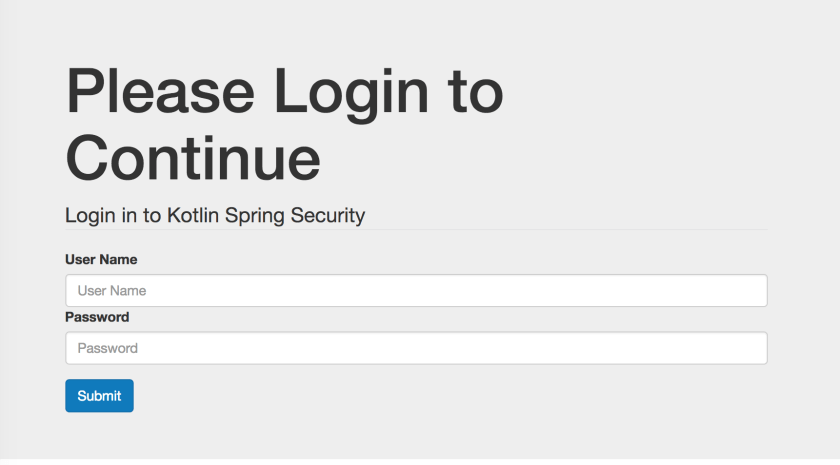
This is a screen shot of the page that will be used for this tutorial.
LoginPage
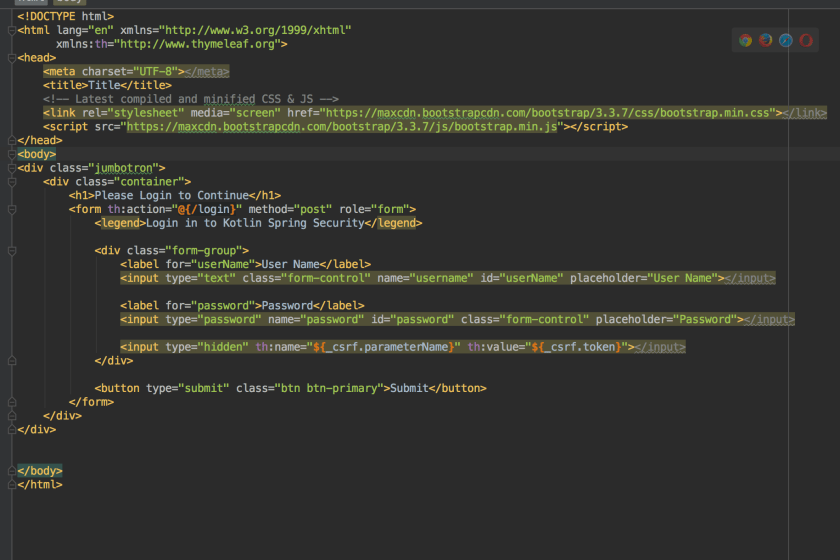
Followed by the code.
LoginCode
It’s critical to remember to include the CSRF token in the form. Without it, the server will refuse any HTTP POST requests and will respond with code 405. The th:name="${_csrf.parameterName}" th:value="${_csrf.token}" on an input take will do the job of adding the CSRF token.

Backend—Configure Spring

Once the front end code is ready, you need to configure Spring Security to use this page. In order to render the login page, Spring will need some sort of controller class. Developers are free to write their own, but it’s also trivial to make use of the one Spring is happy to provide.

@Configuration
class WebConfig : WebMvcConfigurerAdapter() {
    override fun addViewControllers(registry: ViewControllerRegistry) {
        //This class adds a default controller for the login page.
        //Otherwise you would need to write a custom controller class
        registry.addViewController("/login").setViewName("login")
    }
}

The next job is to configure Spring security.

@Configuration //Make this as a configuration class
@EnableWebSecurity //Turn on Web Security
class SecurityWebInitializer : WebSecurityConfigurerAdapter(){
    override fun configure(http: HttpSecurity) {
        http
                .authorizeRequests()
                    //We need to allow anonymous users to
                    //access the login page (otherwise we get 403)
                    .antMatchers("/login").anonymous()
                    .anyRequest().authenticated()
                .and()
                    //Setup a custom login page
                    .formLogin()
                        .loginPage("/login")
                        .usernameParameter("username")
                        .passwordParameter("password")
                .and()
                    .httpBasic()
    }

    override fun configure(auth: AuthenticationManagerBuilder) {
        //This code sets up a user store in memory. This is
        //useful for debugging and development
        auth
                .inMemoryAuthentication()
                    .withUser("bob")
                    .password("belcher")
                    .roles("USER")
                .and()
                    .withUser("admin")
                    .password("admin")
                    .roles("USER", "ADMIN")
    }
}

It’s important to allow anonymous() access to the login page. Without it, Spring Security will continue to redirect to the login page until the server returns 403 (too many redirects).

Conclusion

Once complete, the site will render a custom login page like what is shown in the video.


You can get the code for the complete project at my GitHub page.

Kotlin Koans—Part 22

More functional programming on the horizon. This portion of Kotlin Koans demonstrated folding. I personally had never tackled a challenge like this so it took me more time to figure it out than the other problems. My job was to go through all customers and the products they ordered and reduce them down to a single set of objects. Here is the Kotlin code.

fun Shop.getSetOfProductsOrderedByEveryCustomer(): Set {
    // Return the set of products ordered by every customer
    return customers.fold(allOrderedProducts, {
        orderedByAll, customer ->
            orderedByAll.intersect(customer.orderedProducts)
    })
}

As usual, I tried to do the same problem in Java for comparison purposes, but I wasn’t able to figure it out! (If you know the solution, please leave it in the comments section!). I’ll have to admit that I am weak in some of the functional programming areas.

You can click here to see Part 21.

Spring Security Form Login with JDBC – Kotlin

Spring Security makes it really simple to authenticate users against a database. This tutorial builds on the previous tutorial of configuring Spring Security to secure web applications.

Database Schema

Spring Security is happy to do all of the work of querying a database and validating user information provided your database conforms to the correct database schema (note, you are free to customize). Here is the sql script that is used to configure an example datasource for this project that is based of the one provided in the Spring documetation.

/* See https://docs.spring.io/spring-security/site/docs/current/reference/html/appendix-schema.html */

DROP TABLE IF EXISTS persistent_logins;
DROP TABLE IF EXISTS group_members;
DROP TABLE IF EXISTS group_authorities;
DROP TABLE IF EXISTS groups;
DROP TABLE IF EXISTS authorities;
DROP TABLE IF EXISTS users;

create table users(
  username varchar_ignorecase(50) not null primary key,
  password varchar_ignorecase(50) not null,
  enabled boolean not null
);

create table authorities (
  username varchar_ignorecase(50) not null,
  authority varchar_ignorecase(50) not null,
  constraint fk_authorities_users foreign key(username) references users(username)
);

create unique index ix_auth_username on authorities (username,authority);

create table groups (
  id bigint generated by default as identity(start with 0) primary key,
  group_name varchar_ignorecase(50) not null
);

create table group_authorities (
  group_id bigint not null,
  authority varchar(50) not null,
  constraint fk_group_authorities_group foreign key(group_id) references groups(id)
);

create table group_members (
  id bigint generated by default as identity(start with 0) primary key,
  username varchar(50) not null,
  group_id bigint not null,
  constraint fk_group_members_group foreign key(group_id) references groups(id)
);

create table persistent_logins (
  username varchar(64) not null,
  series varchar(64) primary key,
  token varchar(64) not null,
  last_used timestamp not null
);

insert into users values('bob_belcher', 'burger_bob', true);
insert into authorities values ('bob_belcher', 'user');

This script drops all tables if they exist and then recreates the database tables. It also populates the database with a user: bob_belcher. Creating and destroying the DB in this fashion is useful for both development purposes and unit testing. Naturally, a production machine would preserve the data each time.

Spring Configuration

Configuring Spring Security to work with our database is a complete breeze at this point. We start by creating two bean definitions for both a data source and a jdbcTemplate.

@Configuration
class DataConfig {

    @Bean(name = arrayOf("dataSource"))
    fun dataSource() : DataSource {
        //This will create a new embedded database and run the schema.sql script
        return EmbeddedDatabaseBuilder()
                .setType(EmbeddedDatabaseType.HSQL)
                .addScript("schema.sql")
                .build()
    }

    @Bean
    fun jdbcTemplate(@Qualifier("dataSource") dataSource: DataSource) : JdbcOperations {
        return JdbcTemplate(dataSource)
    }
}

Since I am using Spring Boot, I did qualify our dataSource bean so that the container knew which bean I wanted to use for our datasource.

Now that we have our data source configured, we just need to tell Spring Security about it. It’s not very difficult.

@Configuration //Make this as a configuration class
@EnableWebSecurity //Turn on Web Security
class SecurityWebInitializer(
        //Inject our datasource into this class for the AuthenticationManagerBuilder
        @Autowired @Qualifier("dataSource") val dataSource: DataSource)
    : WebSecurityConfigurerAdapter(){

    override fun configure(http: HttpSecurity) {
        http
                    .formLogin()
                .and()
                    .logout()
                        .logoutSuccessUrl("/")
                .and()
                    .rememberMe()
                        .tokenRepository(JdbcTokenRepositoryImpl())
                            .tokenValiditySeconds(2419200)
                                .key("BurgerBob")
                .and()
                    .httpBasic()
                .and()
                    .authorizeRequests()
                        .antMatchers("/").authenticated()
                        .anyRequest().permitAll()
    }

    override fun configure(auth: AuthenticationManagerBuilder) {
        //As long as our database schema conforms to the default queries
        //we can use jdbcAuthentication and pass in our data source
        //Spring will do the rest of the work for us
        auth.jdbcAuthentication().dataSource(dataSource)
    }
}

In this case, all that is needed is to call auth.jdbcAuthentication().dataSource and pass in our dataSource object. Spring Security takes it from there.

Conclusion

Here is a video of this in action.


You can grab the entire code from my Github page here.

Kotlin Spring Security Tutorial

Just about anybody can appreciate the value of securing a web application. After all, who would do their online banking on an unsecured website? Of course, it’s not just online banking that requires security. Just about any website that has information that requires protecting needs security.

Spring provides web security modules that help us secure our applications. As with everything in Spring, it’s really easy to use an configure.

Define a Security Class

Spring has us extend the WebSecurityConfigurerAdapter class and annotate it with @Configuration and @EnableWebSecurity. Here is an example Kotlin class that enables our web security and forces all requests to the web application to be authenticated.

@Configuration //Make this as a configuration class
@EnableWebSecurity //Turn on Web Security
class SecurityWebInitializer : WebSecurityConfigurerAdapter(){
    override fun configure(http: HttpSecurity) {
        //This tells Spring Security to authorize all requests
        //We use formLogin and httpBasic
        http
                .authorizeRequests()
                    .anyRequest()
                    .authenticated()
                .and()
                    .formLogin()
                .and()
                    .httpBasic()
    }

    override fun configure(auth: AuthenticationManagerBuilder) {
        //This code sets up a user store in memory. This is
        //useful for debugging and development
        auth
                .inMemoryAuthentication()
                    .withUser("bob")
                    .password("belcher")
                    .roles("USER")
                .and()
                    .withUser("admin")
                    .password("admin")
                    .roles("USER", "ADMIN")
    }
}

The first method, configure(http: HttpSecurity) calls methods on the http object. This class has a chaining interface and by calling the proper methods, we can tailor the security configuration to suit our needs. The methods are plain english, so the code ends up being highly self-documenting.

The other configure method accepts an auth: AuthenticationManagerBuild. The auth object is used to configure a data store for users. For the purposes of this post, we are creating an inMemoryAuthentication. This is useful for development and debugging purposes.

The Controller Class

There isn’t anything special about the controller class. That’s a feature of Spring Security. Security is a cross cutting concern which means that the main application code should not have to concern itself with security. Instead, Spring uses Aspect Orientated programming to secure our application.

Sometimes it’s useful to know what user is logged into this system. There is a an example of how to access this information and pass it back to the view. (Readers who are not familiar with Spring MVC can refer here for an example of Spring MVC).

@Controller
@RequestMapping("/")
class IndexController {

    @RequestMapping(method = arrayOf(RequestMethod.GET))
    fun doGet(model : Model) : String {
        //We can access the current user like this
        val authorization = SecurityContextHolder.getContext().authentication

        //Send the user name back to the view
        model.addAttribute("username", authorization.name)
        return "index"
    }
}

The SecurityContextHolder class provides an access point to the current logged in user. Spring calls it an authentication. The object returns contains information about the user such as the user name.

Conclusion

Here is a video of logging into this site in action.


You can get the code from my github page here.

Kotlin Koans—Part 21

The Kotlin Koans tutorial continues with more demonstrations about the extensions on collection classes. This portion of the tutorial was a partitioning problem where I had to return the customers that have not had their orders delivered. Here is the code.

fun Shop.getCustomersWithMoreUndeliveredOrdersThanDelivered(): Set {
    // Return customers who have more undelivered orders than delivered
    return customers.partition { it.orders.all { it.isDelivered } }.second.toSet()
}

Kotlin adds a partition method to it’s collection classes. The partition method takes a lambda expression that returns a boolean. Inside of this lambda, I used the all (#TODO Link to All) method on the orders collection. Once again, I am returning a boolean value.

Now for the coolest part. Kotlin has a pair class that has a first and second method. Since I need the orders that are not delievered, I use the second property on the Pair class. At this point, second is holding a collection of Customers whose orders are not delivered. Finally, I can use the toSet (#TODO Link) method to transform the collection into a set.

Like the last few portions of this tutorial, I decided to compare the Kotlin code to the Java 8 code. Here is what I came up with.

public static Set getCustomersWithMoreUndeliveredOrdersThanDelivered(Shop shop){
    return new HashSet(shop.getCustomers()
            .stream()
            .collect(Collectors.partitioningBy((Customer c) -> c.getOrders().stream().allMatch(Order::isDelivered)))
            .get(false));
}

You can click here to see Part 20.